AI Agents
An AI Agent is the central composition object in Turing ES's GenAI system. It combines a specific LLM Instance, a selected set of tools, and a set of MCP Servers into a single, named, deployable assistant.
Each agent has its own personality, capability set, and visual identity. In the Chat interface, every configured agent appears as a separate tab — users choose which agent to interact with based on its name and description.
AI Agents are configured in Administration → AI Agents.
Agent Composition
An AI Agent is built from four layers: Identity, Brain, Capabilities, and Output.

Configuration Form
The agent form is organized into four tabs accessible from the agent detail page.
Settings
| Field | Required | Description |
|---|---|---|
| Name | Yes | Display name shown as the tab label in the Chat interface |
| Avatar | Profile image representing the agent in the chat UI — supports upload and removal | |
| Description | Brief explanation of the agent's purpose and specialization | |
| System Prompt | Instructions sent as a system message before every conversation. Defines persona, behaviour, and language rules. | |
| Enabled | Toggle to activate or deactivate the agent. Disabled agents do not appear in the Chat interface. |
If the system prompt is left blank, the agent uses a built-in default:
"You are an AI assistant. Answer the user's questions using the tools available to you. If you have access to MCP server tools, use them when relevant to fulfill the user's request. If the user asks in a specific language, respond in that same language."
LLM
Select one or more LLM Instances that this agent can use for inference. The list shows each instance's title, description, vendor, and model name. At chat time, the user (or frontend) specifies which instance to use from the agent's allowed set.
See LLM Instances for configuration details.
Tools
Select which of the 27 native tools (across 7 categories) are available to this agent. Tools are displayed grouped by service — each group has a select-all checkbox for quick configuration.
| Category | Examples |
|---|---|
| Semantic Navigation | list_sites, search_site, get_document_details, find_similar_documents, search_by_date_range |
| RAG / Knowledge Base | search_knowledge_base, list_knowledge_base_files, get_file_content, knowledge_base_stats |
| Web Crawler | fetch_webpage, extract_links |
| Finance | get_stock_quote, search_ticker |
| Weather | get_weather |
| Image Search | search_images |
| Date / Time | get_current_time |
| Code Interpreter | execute_python |
A lean tool list reduces prompt length and helps the LLM make more precise tool choices.
See Tool Calling for the full tool reference.
MCP Servers
Select which external MCP servers this agent can call. The list shows each server's title, description, and connection type badge:
| Badge | Transport | Description |
|---|---|---|
| HTTP (blue) | SSE over HTTP | Web-based MCP servers |
| COMMAND (amber) | stdio | Local process-based MCP servers |
See MCP Servers for configuration details.
Composing Agents for Specific Roles
Because each agent independently selects its LLM Instance, tools, and MCP servers, it is straightforward to build purpose-specific assistants.
Enterprise Search Agent
An agent that helps users find and explore indexed content across the organization.
| Field | Value |
|---|---|
| LLM Instance | Anthropic Claude Sonnet |
| Tools | list_sites, search_site, get_document_details, find_similar_documents, search_by_date_range |
| MCP Servers | — |
Data Research Agent
A multi-purpose agent that can browse the web, query financial data, and run data analysis scripts.
| Field | Value |
|---|---|
| LLM Instance | OpenAI GPT-4o |
| Tools | fetch_webpage, extract_links, get_stock_quote, get_weather, execute_python, search_knowledge_base |
| MCP Servers | Internal data API (HTTP MCP) |
IT Operations Agent
A local agent for internal IT queries — runs fully on-premise using a local LLM.
| Field | Value |
|---|---|
| LLM Instance | Ollama (local Llama 3) |
| Tools | execute_python, get_current_time, search_knowledge_base |
| MCP Servers | Internal ticketing system (stdio MCP) |
How an Agent Executes
When a user sends a message to an AI Agent, the following loop runs:
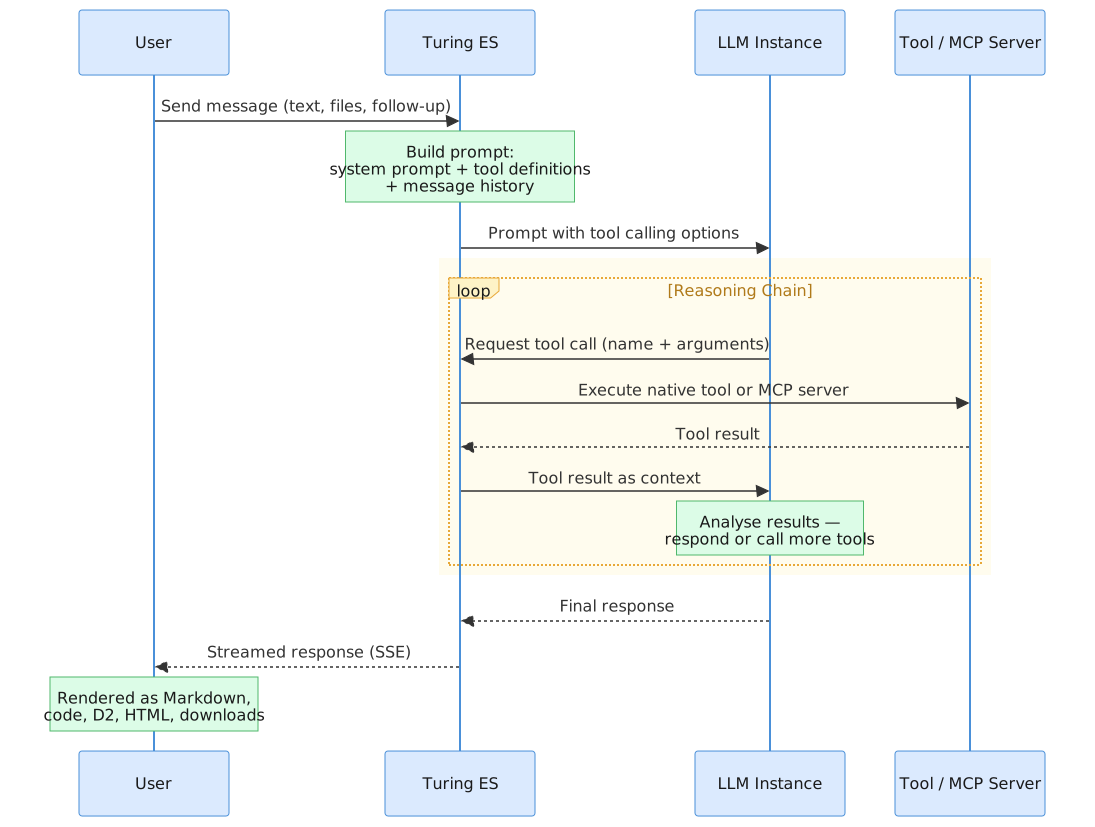
- User Input — the user sends a message (text, file attachments, or follow-up) via the agent's Chat tab.
- Prompt Construction — Turing ES builds the prompt from the agent's system prompt, tool definitions (native + MCP), and the full message history.
- LLM Inference — the LLM Instance processes the prompt and decides whether to respond directly or call tools.
- Tool Execution — if tools are needed, the LLM requests a tool call (name + arguments). Turing ES executes it (native tool or MCP server) and returns the result.
- Multi-step Reasoning — the LLM analyses the tool results and may request additional tool calls in a reasoning chain, looping back to step 4 until satisfied.
- Final Response — the LLM generates the final answer, grounded in the tool results and conversation context.
- Chat Rendering — the response is streamed to the user via SSE with full rich content rendering (Markdown, code blocks, D2 diagrams, HTML, download links).
All tool invocations are wrapped with logging that records the tool name, input, execution time, and response length for debugging.
REST API
Agent Management
| Method | Endpoint | Description |
|---|---|---|
GET | /api/ai-agent | List all agents (ordered by title) |
GET | /api/ai-agent/structure | Get empty structure template for a new agent |
GET | /api/ai-agent/{id} | Get a specific agent |
POST | /api/ai-agent | Create a new agent |
PUT | /api/ai-agent/{id} | Update an existing agent |
DELETE | /api/ai-agent/{id} | Delete an agent |
Agent Chat
| Method | Endpoint | Description |
|---|---|---|
POST | /api/v2/ai-agent/{agentId}/chat | Stream chat response (SSE). Request body: { llmInstanceId, messages[] } |
GET | /api/v2/ai-agent/{agentId}/chat/context-info | Get LLM context window size. Query param: llmInstanceId |
Native Tools
| Method | Endpoint | Description |
|---|---|---|
GET | /api/native-tool | List all available tool groups with tool names and descriptions |
Caching
Agent data is cached at the repository layer to avoid repeated database reads:
turAIAgentfindAll— caches the full list of agentsturAIAgentfindById— caches individual agent lookups
Cache entries are invalidated automatically on create, update, or delete.
Related Pages
| Page | Description |
|---|---|
| LLM Instances | Configure the LLM providers available as agent backends |
| Tool Calling | Full reference of all 27 native tools |
| MCP Servers | Connect agents to external tools via MCP |
| Chat | Front-end where agents are used — AI Agents tab |
| GenAI & LLM Configuration | RAG architecture overview |