Semantic Navigation
The Semantic Navigation page (/admin/sn) manages the search experiences that power every user-facing search in Turing ES. It is accessible from the Enterprise Search section of the sidebar.
Each Semantic Navigation Site (SN Site) is a complete, independently configured search experience: it defines which content is indexed, which search engine backend is used, how results are presented, which AI features are enabled, and how the front-end should render the response. A single Turing ES instance can host multiple SN Sites.
For a conceptual overview of what SN Sites are and how they relate to the rest of the system, see Core Concepts.
Site Listing
The page displays all configured SN Sites as a grid of cards (title and description). Use the "New" button to create a new site. When no sites exist, a blank state guides you to create the first one.
Site Configuration
Clicking a site opens its configuration, organized into tabs. Each tab covers a distinct aspect of the site's behaviour.
Settings
General identity and search engine binding for the site.
| Attribute | Description |
|---|---|
| Name | Identifier for the site — used in API URLs (e.g., /api/sn/{Name}/search) |
| Description | Human-readable description shown in the console |
| Search Engine | The Search Engine instance that stores and searches content for this site. See Search Engine |
| Thesaurus | Enables thesaurus-based query expansion — matching synonyms and related terms |
Multi Languages
Defines which locales are active for this site and maps each locale to a search engine core (collection).
| Attribute | Description |
|---|---|
| Language | Locale code for this language variant (e.g., en_US, pt_BR) |
| Core | The Solr core (or Elasticsearch index) where content for this locale is stored and searched |
Each locale is indexed and searched independently. The Accept-Language request header or the _setlocale query parameter selects the active locale at search time.
Open Search button: Next to each locale row, the Open Search button opens the HTML search page for that locale at:
GET http://localhost:2700/sn/<SITE_NAME>
Behavior
Controls how the search engine processes queries and assembles results for this site. All settings are stored on the TurSNSite entity and managed via GET / PUT /api/sn/{id}.
General
| Setting | Description |
|---|---|
| Rows per Page | Number of results returned per search request |
| Exact Match | When enabled, terms wrapped in quotes trigger an exact phrase match instead of a tokenized search |
Wildcard
| Setting | Description |
|---|---|
| Wildcard No Results | Automatically appends a wildcard (*) to the query when the original search returns no results, broadening the match |
| Wildcard Always | Always appends a wildcard to every search term, regardless of result count |
Use Wildcard No Results to recover gracefully from zero-result queries.
Wildcard Always appends * to every query term regardless of result count. This increases recall — more documents match — but significantly reduces relevance precision. Avoid using it in sites where ranking quality matters. Prefer Wildcard No Results as a safer fallback.
Facets
| Setting | Description |
|---|---|
| Facet | Enables or disables faceted navigation for this site |
| Items per Facet | Maximum number of values displayed per facet in the result panel |
| Facet Sort | How facet values are ordered: by document count (COUNT) or alphabetically (ALPHABETICAL) |
| Facet Type | How different facets combine with each other: AND or OR. Default: AND |
| Facet Item Type | How values within the same facet combine with each other: AND or OR. Default: AND |
Understanding Facet Type vs Facet Item Type
These two settings control different levels of the filter query. Think of a search where the user has selected filters from two facets:
- Category facet: selected
NewsandBlog - Year facet: selected
2024
Facet Item Type controls how News and Blog combine (they're items within the same facet):
| Facet Item Type | Filter logic | Practical effect |
|---|---|---|
| OR (recommended) | category:"News" OR category:"Blog" | Show documents that are News or Blog — broadens results within this facet |
| AND | category:"News" AND category:"Blog" | Show documents that are News and Blog simultaneously — narrows results (often returns 0 results for single-value fields) |
Facet Type controls how the Category group and the Year group combine (they're different facets):
| Facet Type | Filter logic | Practical effect |
|---|---|---|
| AND (recommended) | (category filter) AND (year filter) | Results must match both facets — narrows results progressively as more facets are selected |
| OR | (category filter) OR (year filter) | Results can match either facet — broadens results when more facets are selected |
The four combinations
User selects: Category = [News, Blog] + Year = [2024]

┌──────────────────────────────────────────────────────────────────────┐
│ Facet Type = AND, Facet Item Type = OR  (recommended default)       │
│                                                                      │
│ Solr fq: (category:"News" OR category:"Blog") AND (year:2024)       │
│                                                                      │
│ "Show me News or Blog articles, but only from 2024"                  │
│ → Progressive filtering: each new facet narrows results              │
│ → Multiple values in same facet broaden within that dimension        │
└──────────────────────────────────────────────────────────────────────┘

┌──────────────────────────────────────────────────────────────────────┐
│ Facet Type = AND, Facet Item Type = AND                              │
│                                                                      │
│ Solr fq: (category:"News" AND category:"Blog") AND (year:2024)      │
│                                                                      │
│ "Show me documents tagged both News AND Blog, from 2024"             │
│ → Only useful for multi-valued fields (tags, categories)             │
│ → Single-value fields return 0 results with multiple selections      │
└──────────────────────────────────────────────────────────────────────┘

┌──────────────────────────────────────────────────────────────────────┐
│ Facet Type = OR, Facet Item Type = OR                                │
│                                                                      │
│ Solr fq: (category:"News" OR category:"Blog") OR (year:2024)        │
│                                                                      │
│ "Show me anything that is News, Blog, OR from 2024"                  │
│ → Very broad: adding more facets increases results                   │
│ → Useful for discovery/exploration interfaces                        │
└──────────────────────────────────────────────────────────────────────┘

┌──────────────────────────────────────────────────────────────────────┐
│ Facet Type = OR, Facet Item Type = AND                               │
│                                                                      │
│ Solr fq: (category:"News" AND category:"Blog") OR (year:2024)       │
│                                                                      │
│ "Show me documents tagged both News AND Blog, OR anything from 2024" │
│ → Uncommon combination                                               │
└──────────────────────────────────────────────────────────────────────┘
For most search interfaces, use Facet Type = AND with Facet Item Type = OR. This gives users the intuitive behavior of narrowing results as they add facets, while allowing multiple selections within a single facet to broaden within that dimension. This is the standard pattern used by e-commerce sites and enterprise search portals.
Override priority
The facet operators are resolved with a three-level priority:
- Request-level (highest) — the
fqOperatorandfqItemOperatorfields in the POST body override everything - Field-level — each field can set its own
Facet TypeandFacet Item Typein the Fields configuration (set toDEFAULTto inherit from site) - Site-level (fallback) — the values configured here in the Behavior tab
This allows fine-grained control: for example, the site default can be Facet Type = AND, while a tags field overrides its Facet Item Type to OR because tags are multi-valued and should always use OR logic.
Secondary Facets
Any field configured as a facet can additionally be promoted to a Secondary Facet in the field's settings. Secondary facets are returned in a separate widget.secondaryFacet section of the search response, completely independent from the regular widget.facet section. This gives the front-end full control over how to render them — for example, a content_type field configured as a secondary facet can be rendered as navigation tabs ("All · Articles · Videos · Downloads") while the remaining facets appear as sidebar filters. The field must be a facet first; secondary facet is a promotion, not a replacement.
Highlighting
| Setting | Description |
|---|---|
| HL | Enables term highlighting in search result snippets |
| HL Pre | Opening HTML tag wrapping matched terms (e.g., <mark> or <b>) |
| HL Post | Closing HTML tag (e.g., </mark> or </b>) |
The HL Pre and HL Post values are injected directly around matched terms in the text and description fields of each result. Your front-end application receives the pre-highlighted HTML and renders it as-is.
Spell Check
| Setting | Description |
|---|---|
| Spell Check | Enables spelling suggestion when the query term is not found or returns few results |
| Spell Check Fixes | When enabled, automatically re-runs the search using the corrected term and returns those results instead of showing a "Did you mean?" prompt |
More Like This (MLT)
| Setting | Description |
|---|---|
| MLT | Enables the More Like This feature, which finds documents semantically similar to a given result |
When MLT is enabled, each search result can be expanded to show related documents — useful for discovery experiences and content recommendation.
Spotlight
| Setting | Description |
|---|---|
| Spotlight with Results | When enabled, curated Spotlight documents are displayed alongside organic results. When disabled, Spotlights are shown only when the query matches a spotlight term and no organic results are returned |
Default Field Mappings
These settings map the SN Site's canonical display fields to the actual field names in the Solr index. They allow the front-end application to always reference a consistent set of fields regardless of how connectors named the fields at indexing time.
| Setting | Description |
|---|---|
| Title | Field used as the result title |
| Text | Field used as the main body / snippet text |
| Description | Field used as the result description |
| Date | Field used as the result date |
| Image | Field used as the result thumbnail image URL |
| URL | Field used as the result link |
| Default Field | The field Solr uses for full-text search when no specific field is targeted in the query |
| Exact Match Field | The field used when the user searches with quoted terms (exact match mode) |
Fields
Lists all fields configured for this site. Each field defines how a document attribute is indexed, searched, and presented.
Field Listing
| Column | Description |
|---|---|
| Field | Field name as it appears in the Solr schema |
| Enabled | Whether this field is active |
| MLT | Whether this field is included in More Like This queries |
| Facets | Whether this field is exposed as a facet filter |
| Secondary Facet | Whether this facet is promoted to the secondaryFacet section of the search response |
| Highlighting | Whether highlighted snippets are returned for this field |
Field Detail
Clicking a field opens its detail form:
| Attribute | Description |
|---|---|
| Name | Field identifier — must match the Solr schema field name |
| Description | Purpose or contents of this field |
| Type | Data type: INT, LONG, FLOAT, DOUBLE, CURRENCY, STRING, DATE, or BOOL |
| Multi Valued | Whether the field holds an array of values |
| Facet Name | Display label shown in the search UI facet panel |
| Facet | Whether to expose this field as a filter facet |
| Secondary Facet | Promotes this facet to the secondaryFacet section of the search response (e.g., for rendering as navigation tabs) |
| Highlighting | Whether to return highlighted snippets for this field |
| MLT | Whether this field participates in More Like This queries |
| Enabled | Whether this field is active |
| Required | Whether the field must be present when indexing a document |
| Default Value | Value used when a document is indexed without this field |
A secondary facet is a regular facet that is additionally returned in a separate secondaryFacet section of the search response. This lets the front-end render it differently — for example, as horizontal tabs ("All · Articles · Videos") — while other facets appear as sidebar filters. The field must have Facet enabled first; Secondary Facet is a promotion, not a replacement.
Field-Level Facet Overrides
Beyond the standard settings, each field can override the site-level facet behavior:
| Field setting | Description |
|---|---|
| Facet Type | Overrides the site-level operator between this facet and others (AND / OR) |
| Facet Item Type | Overrides the site-level operator between values within this facet (AND / OR) |
| Facet Range | Enables date range faceting for this field. Instead of listing discrete values, the facet groups documents by predefined date periods: day, month, or year |
A date field configured with Facet Range groups results into date period buckets rather than listing individual values. The available granularities are day, month, and year — selected in the field configuration. The response returns one facet item per period that has at least one matching document, each with its pre-built filter link.
Custom Facets
Custom Facets let you define the exact items that appear in a facet, each with its own filter rule, label, and position — rather than relying on the values that happen to exist in the index. They are created from an existing field and appear automatically in the search response alongside regular facets, following the site's behavior settings.
This is useful when the raw field values are not user-friendly, when you want to group multiple values into a named bucket, or when you need range-based navigation (e.g., price ranges, date periods, score thresholds).
Custom Facet item operators
Each item in a Custom Facet is defined by an operator (TurSNSiteCustomFacetOperatorEnum) that generates its Solr filter query:
| Operator | Behavior | Example |
|---|---|---|
| EQUAL | Matches documents where the field equals the specified value exactly | content_type = "video" |
| BETWEEN | Matches documents where the field value falls within a range (inclusive) | price between 100 and 500 |
| GREATER_THAN | Matches documents where the field value is above the threshold | score > 80 |
| LESS_THAN | Matches documents where the field value is below the threshold | date < 2020-01-01 |
Custom Facet item configuration
| Setting | Type | Description |
|---|---|---|
| label | string | The display name shown in the facet panel (e.g., "Last 30 days", "Under $100") |
| operator | enum | The filter operator: EQUAL, BETWEEN, GREATER_THAN, or LESS_THAN |
| rangeStart | BigDecimal | Start of a numeric range (used with BETWEEN and GREATER_THAN) |
| rangeEnd | BigDecimal | End of a numeric range (used with BETWEEN and LESS_THAN) |
| rangeStartDate | Instant | Start of a date range (used with BETWEEN and GREATER_THAN for date fields) |
| rangeEndDate | Instant | End of a date range (used with BETWEEN and LESS_THAN for date fields) |
| position | integer | The order in which this item appears within the facet |
How it works
Once a Custom Facet is saved, Turing ES generates the facet items automatically on every search request. Each item appears in the widget.facet (or widget.secondaryFacet) section of the response with its pre-built filter link, exactly like a regular facet value. The front-end renders it without any special handling — Custom Facets are indistinguishable from regular facets in the response structure.
Example: Price range facet
A field price (numeric type) configured as a Custom Facet with four items:
| Label | Operator | rangeStart | rangeEnd |
|---|---|---|---|
| Under $50 | LESS_THAN | — | 50 |
| $50 – $200 | BETWEEN | 50 | 200 |
| $200 – $500 | BETWEEN | 200 | 500 |
| Over $500 | GREATER_THAN | 500 | — |
The search response returns these four items as a facet, each with a pre-built filter link — exactly like regular facet values.
Example: Score threshold facet
A field relevance_score configured as a Custom Facet:
| Label | Operator | rangeStart | rangeEnd |
|---|---|---|---|
| High relevance | GREATER_THAN | 80 | — |
| Medium relevance | BETWEEN | 50 | 80 |
| Low relevance | LESS_THAN | — | 50 |
Example: Date range facet
For date fields, use rangeStartDate and rangeEndDate (Instant values) instead of the numeric fields:
| Label | Operator | rangeStartDate | rangeEndDate |
|---|---|---|---|
| This year | GREATER_THAN | 2026-01-01T00:00:00Z | — |
| Last year | BETWEEN | 2025-01-01T00:00:00Z | 2025-12-31T23:59:59Z |
| Older | LESS_THAN | — | 2025-01-01T00:00:00Z |
Custom Facet items use concrete BigDecimal values (for numeric fields) or Instant timestamps (for date fields). Solr query expressions like NOW-7DAYS are not supported — use absolute values instead.
Merge Providers
Merge Providers enable Turing ES to detect when two connectors have indexed the same real-world document and merge their fields into a single enriched Solr document.
What they are
Merge Providers solve the problem of having two independent connectors that index different representations of the same real-world document. Without merging, the same content ends up as two separate entries in the search index — one from each connector — with incomplete information in each.
A classic example: an AEM connector indexes structured data from the CMS (model.json), capturing content metadata such as content type, author, tags, and structured fields. A WebCrawler indexes the same page as rendered HTML, capturing the full readable text. Both connectors run independently and neither has access to the data the other collects.
Merge Providers instruct Turing ES to detect when both connectors have indexed the same document and merge their content into a single, enriched Solr document.
How they work
A Merge Provider is configured with:
-
A join key — a pair of fields, one from each connector, whose values identify the same document. For example, the
urlfield in the AEM document equals theidfield in the WebCrawler document. -
A set of field overwrite rules — which fields from the source connector (the one arriving second) should overwrite fields in the destination document (the one already in the index).
When the indexing pipeline receives a document from connector B and finds that a document from connector A already exists in the index with a matching join key value, it fetches the existing document, applies the field overwrite rules, and writes the merged result back to Solr.
AEM Connector indexes:
  id:        "aem-12345"
  url:       "https://example.com/products/widget"
  title:     "Widget Pro"
  author:    "Marketing"
  tags:      ["product", "hardware"]
  text:      ""   ← empty, AEM doesn't have full text

WebCrawler indexes:
  id:        "https://example.com/products/widget"
  text:      "The Widget Pro is a high-performance..."   ← full page text
  title:     "Widget Pro - Example"

Merge Provider configuration:
  Join key:        AEM.url  =  WebCrawler.id
  Overwrite field: text  ← WebCrawler.text → AEM document

Result in Solr:
  id:        "aem-12345"
  url:       "https://example.com/products/widget"
  title:     "Widget Pro"
  author:    "Marketing"
  tags:      ["product", "hardware"]
  text:      "The Widget Pro is a high-performance..."   ← from WebCrawler
The final document in the index has the structured metadata from AEM and the full text from the WebCrawler, enabling both faceted navigation (using AEM's tags and metadata) and full-text search (using the crawled content).
Configuration
Each Merge Provider entry defines:
| Field | Description |
|---|---|
| providerFrom | The source connector whose incoming document provides field values |
| providerTo | The destination connector whose existing document in the index will be updated |
| relationFrom | The field in the source document used as the join key |
| relationTo | The field in the destination document used as the join key |
| locale | The locale this merge provider applies to |
| description | Optional description of the merge provider's purpose |
Each entry has a set of overwrittenFields — the field names from the source that replace values in the destination document.
Important considerations
The merge is triggered when the source connector's document arrives and a matching destination document already exists in the index. If the destination connector runs after the source, no merge will occur until the source re-indexes. Always schedule the destination connector first so the document is already in Solr when the source arrives.
Join key uniqueness: The field used as the join key must uniquely identify a document within its connector's output. If multiple documents share the same join key value, the merge behavior is undefined.
Field type compatibility: The fields being merged must have compatible types in the Solr schema. Merging a multi-value field into a single-value field, or a date into a string, will cause indexing errors.
Merge scope: Merge Providers are site-scoped. The same connector can participate in different merge configurations across different SN Sites.
Targeting Rules
Targeting Rules are a search-time personalization mechanism that filters results based on user profile attributes — group, role, segment, country, department, or any indexed field. They allow different users to see different content from the same Solr index without maintaining separate cores or running multiple queries.
There is no admin UI for Targeting Rules. Rules are passed by the client in the body of the POST /api/sn/{siteName}/search request and applied dynamically at query time. The Solr schema only needs to have the targeting attributes indexed on the documents.
Common use cases:
- Corporate portal: show HR documents only to employees in the HR department
- E-commerce: show promotions for the user's country and loyalty segment
- Intranet: restrict confidential documents to users with the correct access group
- SaaS platform: filter documentation by the user's subscription tier
How the pipeline works
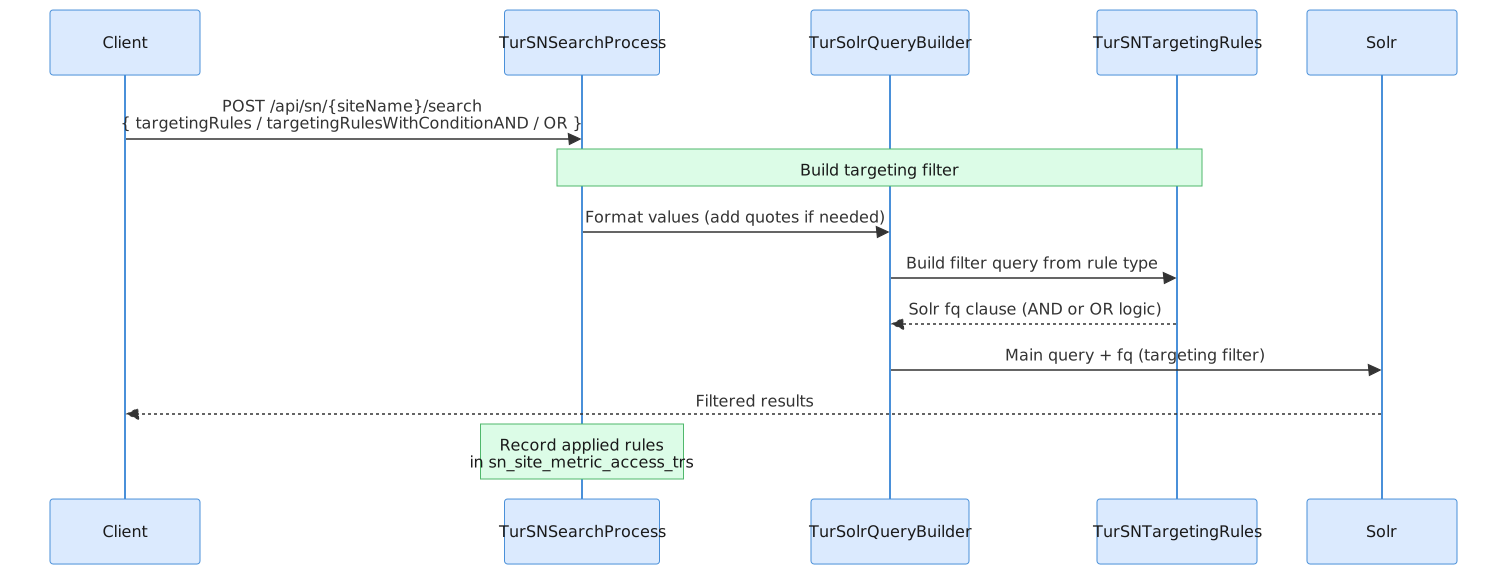
Four rule types
Targeting Rules are sent in the POST request body (see POST Body Parameters). The four types differ in how values are combined across attributes:
1. targetingRules — simple list
A flat array of attribute:value strings. Values for the same attribute are combined with OR; different attributes are combined with AND.
{
  "query": "benefits",
  "targetingRules": ["department:HR", "department:Finance", "clearance:confidential"]
}
Result: documents where (department=HR OR department=Finance) AND (clearance=confidential OR no clearance).
2. targetingRulesWithCondition — map with default logic
A map of attribute → list of values. Behaves identically to targetingRules but uses a structured map format instead of a flat list. Values for the same attribute are combined with OR; different attributes are combined with AND.
{
  "query": "benefits",
  "targetingRulesWithCondition": {
    "department": ["HR", "Finance"],
    "clearance": ["confidential"]
  }
}
Result: equivalent to the targetingRules example above — (department=HR OR department=Finance) AND (clearance=confidential OR no clearance).
3. targetingRulesWithConditionAND — explicit AND
A map of attribute → list of values. Every attribute group must be satisfied simultaneously — AND between groups, OR within each group.
{
  "query": "promotions",
  "targetingRulesWithConditionAND": {
    "country": ["BR"],
    "language": ["pt"]
  }
}
Result: documents matching country=BR AND language=pt (or documents with no restrictions on either attribute).
4. targetingRulesWithConditionOR — explicit OR
A map of attribute → list of values. Any condition is sufficient — OR across all groups.
{
  "query": "discount",
  "targetingRulesWithConditionOR": {
    "segment": ["premium", "gold"],
    "loyalty": ["active"]
  }
}
Result: documents matching any of the conditions — segment=premium, segment=gold, or loyalty=active. More permissive than AND.
Solr filter query generation
TurSolrQueryBuilder converts the rule type into Solr fq clauses via TurSNTargetingRules.
AND logic (each attribute group becomes a clause, all clauses joined with AND):
(group:admin OR group:user OR (*:* NOT group:*))
AND
(role:editor OR (*:* NOT role:*))
Each clause includes (*:* NOT attribute:*) — documents that are not tagged with the attribute are always included (the fallback clause). This ensures untagged, unrestricted content is always visible regardless of the active rules.
OR logic (all attribute-value pairs flattened, joined with OR):
(attr1:val1 OR attr2:val2)
OR
(*:* NOT attr1:* AND NOT attr2:*)
Documents that have none of the targeting attributes are also included.
The fallback clause
Both AND and OR methods include (*:* NOT attribute:*) to ensure documents that were never tagged with a targeting attribute are always returned. This means:
- Adding targeting rules to a search request does not hide untagged content
- Only documents explicitly tagged with a conflicting attribute value are filtered out
- Documents with no targeting attributes are always visible
Practical examples
Example 1 — Corporate portal with department-scoped content
POST /api/sn/portal/search
{
  "query": "benefits",
  "targetingRules": ["department:HR", "department:Finance"]
}
Returns documents tagged for HR or Finance departments, plus all untagged public documents. A Marketing employee does not see HR-restricted content.
Example 2 — E-commerce: country and language (AND)
{
  "query": "promotions",
  "targetingRulesWithConditionAND": {
    "country": ["BR"],
    "language": ["pt"]
  }
}
Solr fq: (country:BR OR (*:* NOT country:*)) AND (language:pt OR (*:* NOT language:*))
Returns only documents for Brazil and in Portuguese, plus documents with no country or language restriction. A document tagged country:US is filtered out.
Example 3 — Internal system with role and group (AND)
{
  "query": "reports",
  "targetingRulesWithConditionAND": {
    "role": ["admin", "manager"],
    "group": ["sales"]
  }
}
Solr fq: (role:admin OR role:manager OR (*:* NOT role:*)) AND (group:sales OR (*:* NOT group:*))
Documents visible to admins or managers (or no role restriction), and within the sales group (or no group restriction).
Example 4 — Promotional content by segment (OR)
{
  "query": "discount",
  "targetingRulesWithConditionOR": {
    "segment": ["premium", "gold"],
    "loyalty": ["active"]
  }
}
Returns documents matching any condition — premium, gold, or active loyalty. More permissive than AND; used when any segment match is sufficient.
Example 5 — Intranet with access group control
{
  "query": "security policy",
  "targetingRules": ["access_group:it", "access_group:security", "clearance:confidential"]
}
Returns documents accessible to IT or Security groups, AND with clearance=confidential (or no clearance). Documents tagged access_group:directors remain hidden.
Indexing requirements
The targeting attributes must be indexed fields in the Solr schema and populated at indexing time by the Dumont DEP connector. Add the desired targeting fields to the SN Site's Fields configuration so they are included in the schema.
If a document is indexed without a targeting attribute (the field is absent or empty), it is treated as unrestricted and always visible — the fallback clause ensures this.
Metrics
Every search request with targeting rules is recorded in sn_site_metric_access_trs, allowing analytics on which rule combinations were applied, how often, and how they affect result volume.
Spotlights
Spotlights are curated search results that are pinned to specific search terms. When a user's query matches a spotlight term, configured documents are injected into the result list at defined positions, before the organic (ranked) results at those positions.
What they are
Spotlights are used for:
- Promoting official pages for important queries (e.g., "benefits" always surfaces the HR benefits page first)
- Pinning announcements or featured content to relevant search terms
- Ensuring a specific URL appears for a known high-traffic query
How matching works
Each Spotlight is associated with one or more terms. When a search request arrives, the system checks whether the query string contains any of the spotlight terms as a substring. The match is case-insensitive.
For example, a spotlight with the term annual report will match the queries annual report 2024, download annual report, and annual report Q3 — any query that contains the phrase.
The term cache (TurSpotlightCache) keeps all spotlight terms in memory to avoid repeated database lookups on every search request, making the matching step fast regardless of the number of spotlights configured.
How injection works
Each document within a Spotlight has a configured position — the ordinal slot in the result list where it should appear. When a spotlight match is detected, the system iterates through the result list and inserts each spotlight document at its configured position, shifting organic results down.
If a spotlight references a document by its Solr ID and that document exists in the index, the full indexed document is retrieved and injected with its live metadata. If the document is not found in the index (e.g., it was deleted or not yet indexed), the system falls back to the raw content configured directly in the spotlight — a manually defined title, description, URL, and type.
Search request: "annual report"
                    │
                    ▼
         Spotlight term match found
                    │
                    ▼
     Position 1 ── Spotlight Doc A (pinned)
     Position 2 ── Organic result #1 (shifted)
     Position 3 ── Organic result #2 (shifted)
     Position 4 ── Spotlight Doc B (pinned)
     Position 5 ── Organic result #3 (shifted)
Configuring Spotlights
Each spotlight definition contains:
| Field | Description |
|---|---|
| name | Descriptive label for the spotlight (admin only) |
| description | Optional notes about the spotlight's purpose |
| language | Locale for this spotlight (spotlights are scoped by language) |
| managed | 1 for managed mode (references indexed documents), 0 for unmanaged (raw content) |
| provider | Source provider (default: TURING) |
| terms | One or more search terms that trigger this spotlight. Matching is case-insensitive substring matching |
A document entry within a spotlight defines:
| Field | Description |
|---|---|
| position | The slot in the result list where this document is injected (1-based) |
| referenceId | The id field value of the target document in the Solr index (optional — used in managed mode) |
| title | Fallback title if the document is not found in the index |
| content | Fallback description (max 2000 characters) |
| link | Fallback URL |
| type | Content type label shown in the UI |
Spotlight modes
Spotlights operate in two modes:
Managed mode: The spotlight references documents that exist in the Solr index. The system retrieves live metadata from the index at query time, so the result always reflects the current state of the document (updated title, description, etc.).
Unmanaged mode: The spotlight stores its own raw content (title, description, URL, type) independently of the index. This is useful for pinning external URLs or content that is not indexed in Turing ES.
Top Search Terms
Displays reports of the most frequently searched terms for this site. Turing ES records every search query and aggregates statistics across four time windows:
| Report | Description |
|---|---|
| Today | Top 50 terms searched today |
| This Week | Top 50 terms for the current week |
| This Month | Top 50 terms for the current month |
| All Time | Top 50 most searched terms of all time |
Each report shows the term and its search count for the selected period. Use this data to identify popular queries for Spotlight configuration, content gaps, and relevance tuning.
Result Ranking
Configures boost expressions that influence search relevance. Each ranking expression boosts documents matching a set of conditions by a configured weight. Expressions are converted into Solr boost queries in the format (condition)^weight and applied at query time.
Ranking Expression Form
General Information
| Attribute | Description |
|---|---|
| Name | Name for this ranking rule |
| Description | What this rule does and why |
Ranking Conditions
A dynamic list of one or more field-value conditions. At least one condition is required.
| Attribute | Description |
|---|---|
| Attribute | An indexed field in the document, selected from the site's configured fields |
| Condition | Is (equals) or Is not (not equals) |
| Value | The value to compare against |
Multiple conditions are combined with AND logic — all conditions must match for the boost to apply.
Ranking Weight
A slider from 0 to 10 that sets the boost intensity. Higher weight causes matching documents to rank higher in results.
Example: A condition type Is news with weight 8 causes documents of type "news" to rank significantly higher than other results.
AI Insights
The AI Insights tab displays an AI-generated natural language summary of this SN Site — aggregating information about its configuration, fields, behavior settings, and indexed content. The summary is generated on demand and gives administrators a quick overview of what the site is configured to do, without having to navigate through all the tabs.
Click Generate to trigger the summary. The response streams in progressively as it is generated.
Generative AI
Configures the RAG (Retrieval-Augmented Generation) system for this site, enabling conversational AI responses grounded in the indexed documents. The tab is divided into four sections.
Site Prompt
A field for generating an automatic description of the site using AI, with streaming support. The generated description can overwrite an existing one after a confirmation dialog.
RAG Activation
| Attribute | Description |
|---|---|
| Enabled | Enables the generative AI chat endpoint for this site (GET /api/sn/{siteName}/chat) |
AI Model & Embedding Configuration
If not configured here, the site inherits the global defaults from Administration → Settings.
| Attribute | Description |
|---|---|
| LLM Instance | The language model used to generate responses (e.g., Anthropic Claude, OpenAI GPT-4o). See LLM Instances |
| Embedding Store | The vector store where document embeddings are persisted: ChromaDB, PgVector, or Milvus |
| Embedding Model | The model used to vectorize documents at indexing time and queries at search time |
Changing the Embedding Model invalidates all existing embeddings for this site. All indexed content must be re-indexed after this change. The Knowledge Base training status in Assets will reflect the stale state.
System Prompt
An editor for the prompt template sent to the LLM on each chat request. The template must include two required variables:
| Variable | Description |
|---|---|
{{question}} | The user's question |
{{information}} | The context retrieved from indexed documents via similarity search |
Saving is blocked if either variable is missing from the template.
How it works: When documents are indexed, TurSNGenAi.addDocuments() extracts title, summary, and body text and stores their embeddings in the configured vector store. When a user sends a chat request (GET /api/sn/{siteName}/chat?q=...), the system performs a similarity search, builds the prompt with the retrieved context, sends it to the LLM, and returns the generated response via Server-Sent Events (SSE). See Chat for the front-end experience.
Search Response Structure
The full search response schema — including pagination, queryContext, results, and the widget object (containing facet, secondaryFacet, similar, spellCheck, spotlights, locales, and cleanUpFacets) — is documented in the REST API Reference → Search Response Structure.
Related Pages
| Page | Description |
|---|---|
| REST API Reference | Search, autocomplete, spell check, and all other API endpoints |
| Search Engine | Manage the Solr/Elasticsearch/Lucene backends that SN Sites connect to |
| Assets | Knowledge Base files for RAG — requires an embedding-capable LLM Instance |
| LLM Instances | Configure the language models used by the Generative AI tab |
| Chat | Front-end chat interface for the Semantic Navigation tab |
| Architecture Overview | How SN Sites fit into the overall system architecture |